
Exercise 1: First Simple Application

Part E: Leverage IDE using Eclipse

Steps

Note:
Maven/Eclipse integration is probably the most volatile aspects of the environment.
  • The Maven side has the Apache Maven Eclipse Plugin. This plugin is used to generate Eclipse configuration files from a maven pom.xml. This is done manually and should be considered "old school". You can forget using this plugin for class.
  • The Eclipse side is handled by the m2e plugin from Eclipse.org. You should have installed this plugin during ex0 using the Eclipse Marketplace. The m2e plugin dynamically updates the Eclipse environment whenever there is a detected change to the pom.xml file.

    We will be using m2e and you will import your projects as Maven Projects and access goals through the "Run..." button.
Section B: Importing a Maven project into Eclipse
Note:
Any manual changes you make to the project dependencies directly within Eclipse will not be reflected in your Maven pom.xml and will not be part of the portable and repeatable build. You should make all dependency changes in the pom.xml and have them get automatically reflected in Eclipse by the m2e plugin.
  1. Inside Eclipse, turn on Working Set foldering (a personal preference of mine). This works best from the Package Explorer (default navigator from the Java perspective; activated manually from the JavaEE perspecive)
    • Click on the downward facing triangle in the top right of the Project Explorer.
    • Select: Top Level Elements -> Working Sets
  2. Create a Working Set for Exercises
    • Click on the downward facing triangle in the top right of the Project Explorer (again).
    • Select: Select Working Set -> New ...
    • Type: "Exercises" and click Finished
    • Select: Exercises as one of the working sets and press OK
  3. Import a project into the Working Set by
    • Select the "Exercises" working set
    • Select Import... (or File->Import)
    • Select Maven->Existing Maven Projects
    • Browse to the project directory. The next panel should show a list of projects that include "ex1".
    • There may be a noticeable delay while it rebuilds the workspace.
    • Select Finish, taking the defaults of the root pom.xml for ex1 and "Add project(s) to working set".
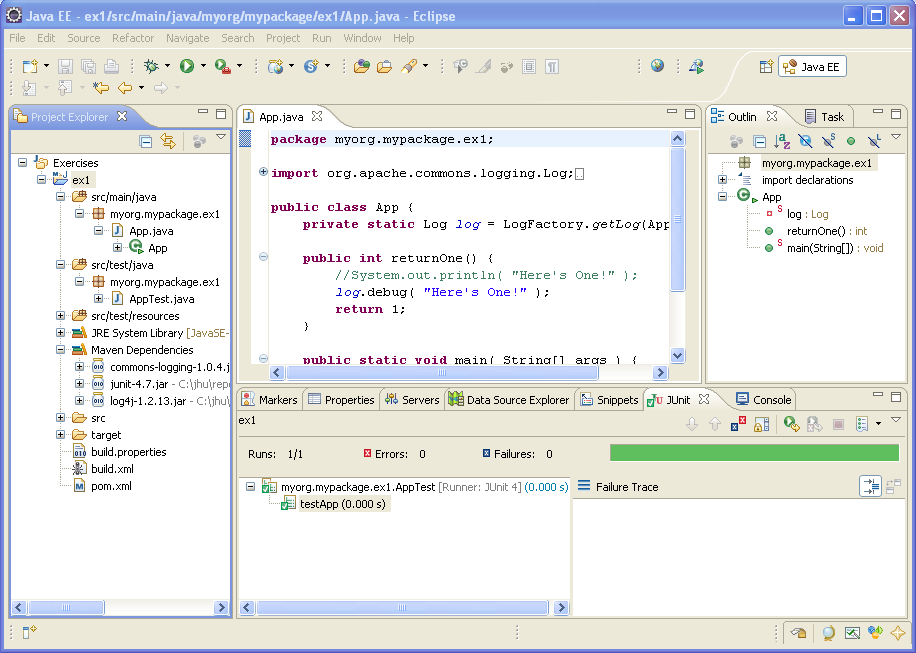
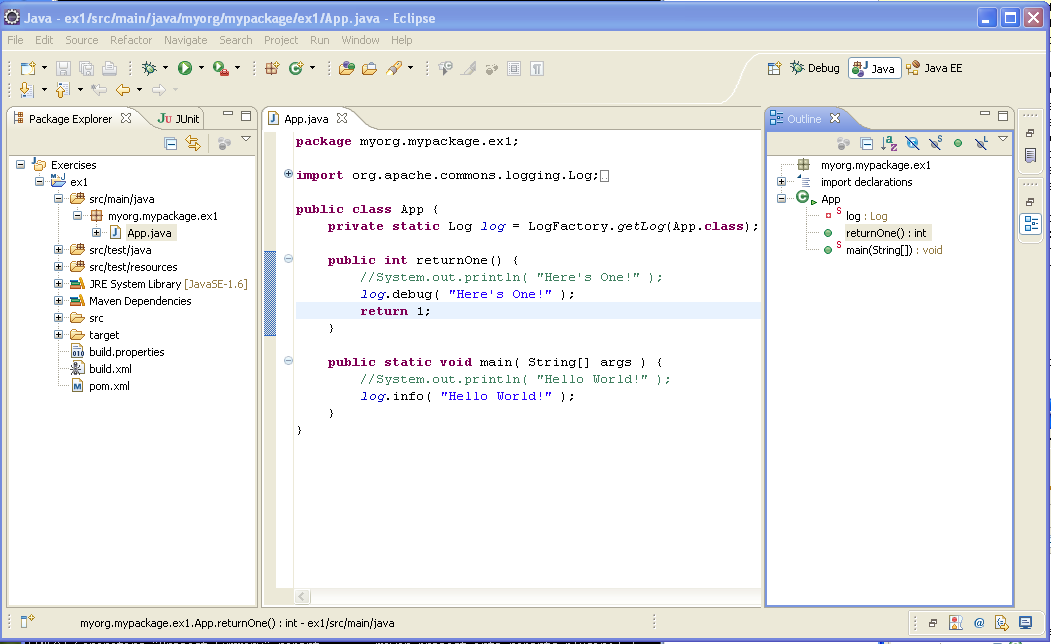
    • Once imported, you should be able to open a suitable Perspective and browse the files of the project.
First Project Imported Into Eclipse
Note:
If the references to commons-logging, log4j, and junit are labelled as unresolved, check that you used the "Maven Projects" import and not the "Existing Project into Workspace" import. Also check the value for Local Repository under Window->Preferences-> Maven->Installations.
Section B: Setup Eclipse to be able to execute Maven project goals
  1. Right-click on the pom.xml file or ex1 project folder and execute Run As->"Maven install". You can also get back to this window through the Run As option on the toolbar once you have the project selective. This mode runs the JUnit test you wrote within the context of the full maven project. All pre-test and post-test setup and teardown you wired into the maven command line build will be executed.
  2. Look for the results of the testing in a *.txt file written to target/test-reports/. Eclipse will not show you this directory by default, but you can open it manually and have it refresh as you run each test.
    Note:
    You can full screen any display by double clicking its tab.
    Note:
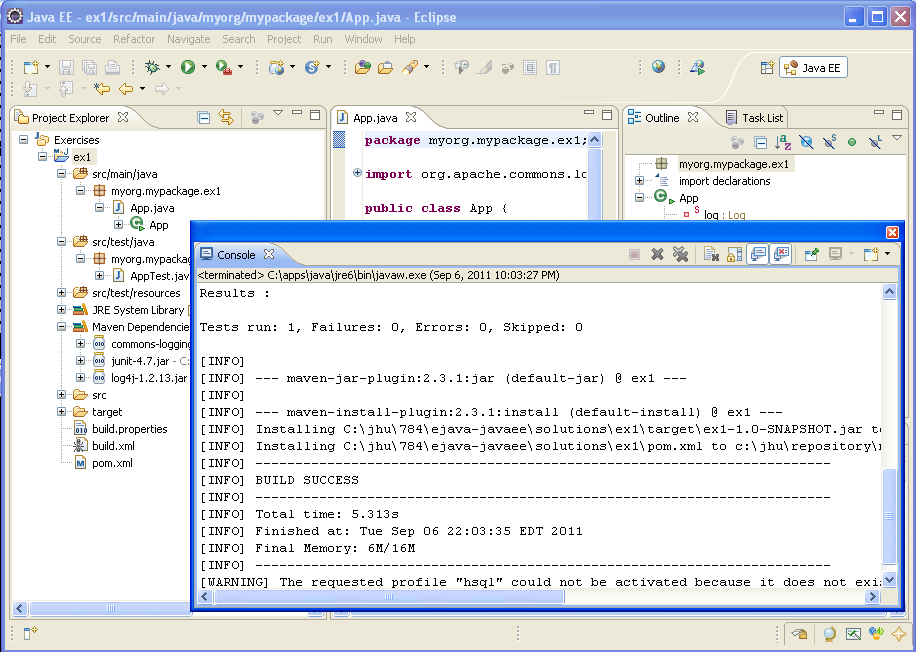
    You can create a separate window for any display by dragging its tab away from the main window. I find this helpful when I want to watch the console output during a debugging session. This is especially cool when you have dual monitors. If your window configuration ever gets messed up, you can use Window->"Reset Perspective" to get it back to a sane state.
    Separate Eclipse Windows
  3. Rerun the tests as a JUnit test. This mode runs the JUnit test raw within Eclipse. This is very efficient for making and testing Java code changes but will not run any maven setup or teardown plugins (which is not always required or can be avoided).
    • Right click the pom.xml or ex1 project folder (again) and select Run As->JUnit Test.
    • You may get a firewall warning at this point and will want to unblock if that occurs.Run As JUnit Test
      1. Make a small edit to the pom.xml and notice the change in the Maven Dependencies within Eclipse. Switch back and forth between these two settings.
                <dependency>
                    <groupId>junit</groupId>
                    <artifactId>junit</artifactId>
                    <version>3.8.1</version>
                    <scope>test</scope>
                </dependency>
                <dependency>
                    <groupId>junit</groupId>
                    <artifactId>junit</artifactId>
                    <version>4.10</version>
                    <scope>test</scope>
                </dependency>
      2. Notice that most maven goals are provided on the Run As pull-down menu. However, some are not and I do not know how the list is determined. If you need a goal accessible that is not listed, then do the following.
        • Right click on the pom.xml file and select Run As -> Run Configurations.
        • Double-click on the Maven Build type. A New_configuration shows up.
        • Change the name to "mvn debug"
        • Set the Base Directory to the variable ${project_loc}
        • Set Goals to "test"
        • Set Profiles to "debugger". This should match the profile added in your settings.xml. See next step.
        • Verify that you are using a JDK 6 instance under the JRE tab.
        • press Apply and Close
Section C: Setup environment to enable interactive debugging
Note:
There are two primary ways to run your JUnit tests with Eclipse; run-as a JUnit and run-as a Maven build. They both execute your test class within JUnit. However, the run-as JUnit runs JUnit without the maven wrapper and any configuration. Any system properties passed in through the pom.xml will not be present and any maven handling of resource files is not performed. The run-as a Maven build runs a Maven phase as a separate entity and JUnit is opaque to Eclipse. The later approach is basically the same as running "mvn (phase)" on the command line and will use all the configuration and processing defined in the pom.xml. There will be times when one approach is better than the other and you need to design your tests or environment with the limits and advantages of each in mind.

I will first show you how to run the debugger running under a normal Maven build. When doing this, you need to realize that there will be 2 processes; the "remote" application being launched/tested and the "local" debugger that is commanding the remote JVM through its actions.

  1. Add the following profile entry to your .m2/settings.xml or pom.xml file. I would normally place this in my settings.xml file since it is specific to the build site. This entry will conditionally set the Maven sirefire.argLine if the "debugger" system property is present. surefire.argLine is a property name we made up. Nothing significant will happen yet.
    <settings xmlns="http://maven.apache.org/POM/4.0.0"
        xmlns:xsi="http://www.w3.org/2001/XMLSchema-instance"
        xsi:schemaLocation="http://maven.apache.org/POM/4.0.0 http://maven.apache.org/xsd/settings-1.0.0.xsd">
    
    ...
        
        <profiles>
            <profile>
                <id>debugger</id>
                <activation>
                    <property>
                        <name>debugger</name>
                    </property>
                </activation>
                <properties>
                    <surefire.argLine>-Xrunjdwp:transport=dt_socket,server=y,suspend=y,address=8000 -Xnoagent -Djava.compiler=NONE</surefire.argLine>
                </properties>                                  
            </profile>        
        </profiles>
    Note:
    Profiles are activated by a specific reference in activeProfiles, passing -P<profile name> on the command line, or through a test of a property. We will use the presence of the the "debugger" system property (e.g., -Ddebugger=xxx).
    Note:
    Use "!debugger" if you want to test the absence of a property.
  2. Add the following to your pom.xml.
    <?xml version="1.0"?>
    <project xmlns="http://maven.apache.org/POM/4.0.0" 
      xmlns:xsi="http://www.w3.org/2001/XMLSchema-instance" 
      xsi:schemaLocation="http://maven.apache.org/POM/4.0.0 http://maven.apache.org/maven-v4_0_0.xsd">
    
       ...
    
      <build>
        <plugins>
    
            <plugin>
                <groupId>org.apache.maven.plugins</groupId>
                <artifactId>maven-surefire-plugin</artifactId>
                <configuration>
                    <argLine>${surefire.argLine}</argLine>
                </configuration>
            </plugin>
    
        </plugins>      
      </build>
    </project>
  3. Test the profile and plugin adjustments by executing "mvn test -Pdebugger" from your base directory command line. This should be the same behavior if you ran the "mvn debug" Run As configuration from Eclipse. However, run only one at a time, since they attempt to listen on a hard coded port number.
    $ mvn test -Pdebugger
    [INFO] Scanning for projects...
    [INFO] -----------------------------------------------------------------
    [INFO] Building My First Simple Project
    [INFO]    task-segment: [test]
    [INFO] -----------------------------------------------------------------
    
    ...
    
    [INFO] Nothing to compile - all classes are up to date
    [INFO] [surefire:test]
    [INFO] Surefire report directory: c:\jhu\784\ex1\target\surefire-reports
    Listening for transport dt_socket at address: 8000
  4. Set up the debugger in client mode. This does not accept a variable project location, so we'll have to set one up to physically point to the project of interest.
    • With your pom.xml selected, select Debug As->Debug Configurations.
    • Double click Remote Java Application.
    • Most of the important values are filled in with acceptable default values. Verify the Port# is the same as what the application is waiting for a connect on (8000).
    • Click "Debug". The paused application should run to completion. This configuration will be saved under the name "ex1".
  5. Add a breakpoint and relaunch the program.
    • Open up AppTest.java and set a breakpoint for log.info() in testApp(). One way to do this is to double click on the left margin.
    • Run the remote portion of the application within Eclipse by selecting pom.xml -> Debug As -> Debug Configurations... -> "mvn debug". This was created in the previous section.
    • Run the debugger in client mode using the configuration from the previous step. You can get to it by selecting the pom.xml -> Debug As -> Debug Configurations... and select "ex1". If you cannot locate it, it can be recreated by double-clicking on Remote Java Application.
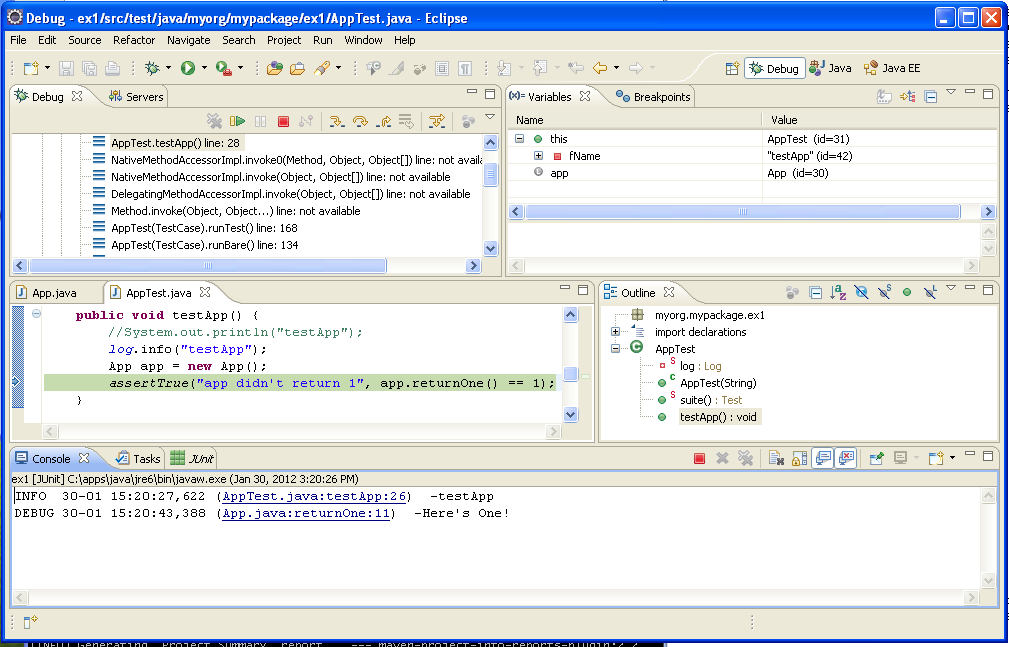
    • This time the application will pause at the breakpoint and Eclipse will open the debugger.
    • Use the debugger perspective to look at variables and step through the execution of the code.
    Eclipse Debugger
  6. Rerun the debug session using Debug As->JUnit. This is much simpler than the above, but functions outside of the Maven environment. You should target your project designs to be able to be debugged in this manner if possible and use the first option as a fallback.

Summary

In this part of the exercise, you were able to integrate your Maven and Eclipse environments. This allows you to leverage the Maven plugins as your core build system and leverage Eclipse for creating Java files and providin.

As mentioned, Eclipse will be the primary demonstration environment in class, but you may use other IDEs, like NetBeans, to match personal preferences.